
# Virtual GPU Scheduler
Editor: your initial at the top right › All Account Settings › Virtual GPU Scheduler
The Virtual GPU Scheduler shows your company's vGPU queue: the simulations that wait for vGPUs or run on them. Here you change their order and their vGPU allocation, move them to FlexCredits, or stop them. The tab appears when your license includes vGPUs.
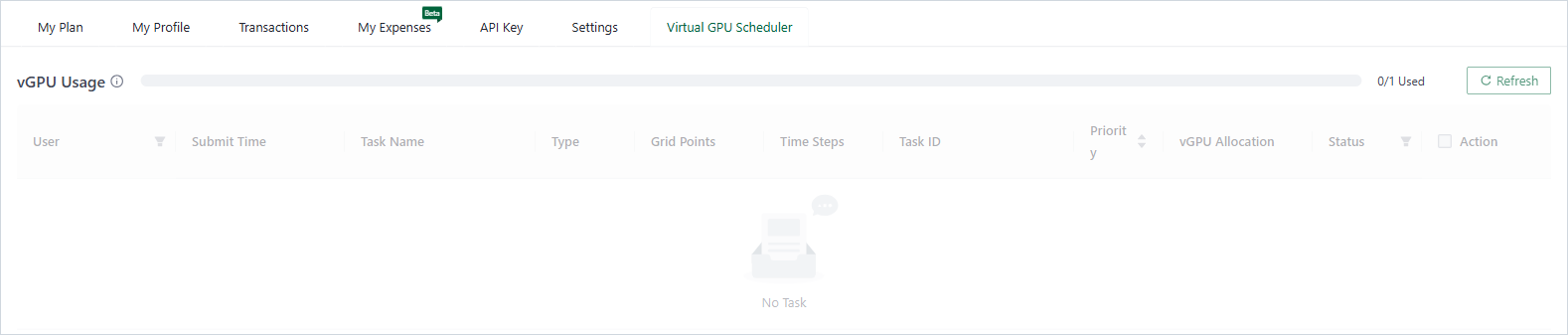
Virtual GPU Scheduler tab
# vGPU Usage
- vGPU Usage shows how many vGPUs are in use now, out of the vGPUs of your license, for example 0/1 Used. A simulation takes its vGPUs just before it starts and gives them back after its results are uploaded. So this number can change a moment before the table does.
- The page updates every 5 seconds. Refresh updates it at once.
# The Queue
The table lists the simulations of your company from the last 7 days that wait or run, up to 500, with 20 per page. Everyone with the license sees the whole queue.
| Column | Shows |
|---|---|
| User | Who started the run. |
| Submit Time, Task Name, Type | When it started, its name and its type. |
| Grid Points, Time Steps | The size of the simulation. |
| Task ID | Click it to copy it. |
| Priority | 1 (lowest) to 10 (highest). Sort with the arrows. |
| vGPU Allocation | Auto, or the number of vGPUs. |
| Status | Queued (orange), Running (blue) or Blocked (red: the simulation needs more GPU memory than your vGPUs have). |
Filter User and Status with the funnel icons. A simulation with a higher priority starts first. If the next simulation needs more vGPUs than are free, the simulations after it wait too. So a large simulation can hold up smaller ones.
# Actions
Click ⋮ in the Action column. You can act on your own simulations; company administrators can act on all.
| Action | What it does | For |
|---|---|---|
| Abort the Task (Abort the Batch for a sweep) | Stops the simulation, after you confirm. | All |
| Use FlexCredit | Runs it with FlexCredits instead, after you confirm the Estimated Cost. You need enough FlexCredits. | Queued or Blocked |
| Change Priority | Sets a new priority, 1 to 10. | Queued |
| Set vGPU Allocation | Sets the number of vGPUs. The dialog shows the Estimated GPU Memory. | Queued |
To act on several simulations, tick their check boxes. A bar offers Use FlexCredit, Change Priority, Set vGPU Allocation (one queued simulation only) and Abort the tasks.
# Common Mistakes
- Waiting for a Blocked simulation. It does not start on vGPU. Use Use FlexCredit, or abort it.
# Related Content
← Account