
# Project History
Editor: top bar › version tag (for example V1)
A project keeps its versions: v1, v2, and so on. A version that you have run cannot change. To change it, you create a new version. The version tag next to the project name lists the versions and opens the full history.
# Versions

Project History menu
- The menu lists the 10 most recent versions, with their status (for example Draft) and the Default tag.
- Click a version to open it. Ctrl+click (⌘+click on a Mac) opens it in a new browser tab.
- Click View Full History to open the History dialog.
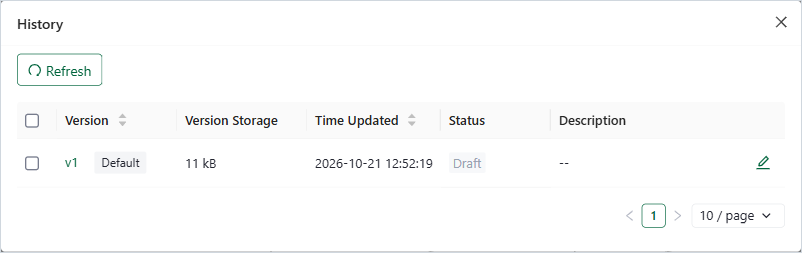
History dialog
| Action | How |
|---|---|
| Edit a description | Click the pencil icon on the row. |
| Make a version the default | Tick its row, then click Set as Default. |
| Delete versions | Tick their rows, then click Delete and confirm. You cannot delete the default version. |
| Update the list | Click Refresh. |
# Create a New Version
- After a run, the run button becomes Edit. Click it, then click Create a New Version. The new version starts as a copy that you can change.
- Or use File › Save As › New version of this project.
# Common Mistakes
- Trying to change a version that has run: it cannot change. Create a new version. The version that ran keeps its results.