
# File Menu
Editor: top bar › File
The File menu shows the project name and description. It changes the project details, exports the project, saves a copy, and shares the project.
# Menu Items
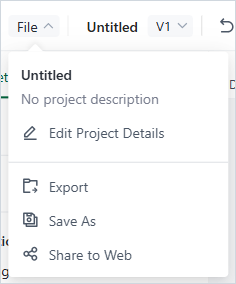
File menu
| Item | What it does |
|---|---|
| Edit Project Details | Opens Project Details, where you change the Name and the Description (optional). |
| Export › Tidy3D Solvers | Creates a new project named "Untitled" of another type (FDTD, MODE or HEAT) with this project's structures, mediums, script objects and parameters. The new project opens in a new browser tab. The list leaves out the current type. An EME project cannot export to MODE. |
| Export › 3D CAD File | Saves the structures as a GLB, OBJ or STL file. |
| Export › GDSII File | Opens the Export GDSII File panel, with a short guided tour. Not in Heat projects. |
| Save As | Saves a copy as a New project, or as a New version of this project. See Project History. |
| Share to Web | Opens Share. Turn on Share to web, then click Copy link. Share full history also shares the older versions. Track default version makes the link follow the default version. |
To rename the project, you can also click its name in the top bar.
# Common Mistakes
- Looking for Save: there is none. The editor saves every change automatically.
- Looking for Save As in an old project: it is hidden for projects made with Tidy3D older than 2.4.0.
- Sharing a link so that others can change the project: people who open a shared link cannot change it. To make changes, they save a copy to their own account.